instagram_content_publish App Review Rejection: Expert Diagnosis
If your instagram_content_publish App Review was denied, Meta usually could not recreate a complete organic Instagram publish path — Facebook Login grant, media create, and a live post on the business Instagram feed — not that “Content Publishing is banned.” This guide diagnoses instagram_content_publish failures against Meta’s Permissions Reference (updated Sep 14, 2026), reviewer psychology, official dependencies, cooldown risk from blind resubmits, and when a specialist audit helps.
What this permission is (official framing)
Per Meta’s Permissions Reference, instagram_content_publish lets your app create organic feed photo and video posts on behalf of a business user. Official allowed usage is managing the Instagram organic content creation process — for example posting photos or videos to a main feed — on behalf of a business. In plain terms, it is the Advanced Access gate between your scheduler / DAM / creator tool and a real Instagram Professional feed publish under the Facebook Login path.
Official dependencies are instagram_basic, pages_read_engagement, and pages_show_list. Those are not filler scopes. Without a coherent Page + Instagram Professional connection story, reviewers never reach a publishable account. Do not confuse this string with instagram_business_content_publish (Instagram Login / Business Login for Instagram family) — same product intent, different Login and App Review surface.
WHAT failed
Reviewers could not verify Facebook Login grant plus create and publish an organic photo (or claimed media) to the business user’s Instagram feed.
WHY it matters
Publishing writes to Instagram. Unverified publish looks like incomplete trust proof for Advanced Access.
WHAT they expected
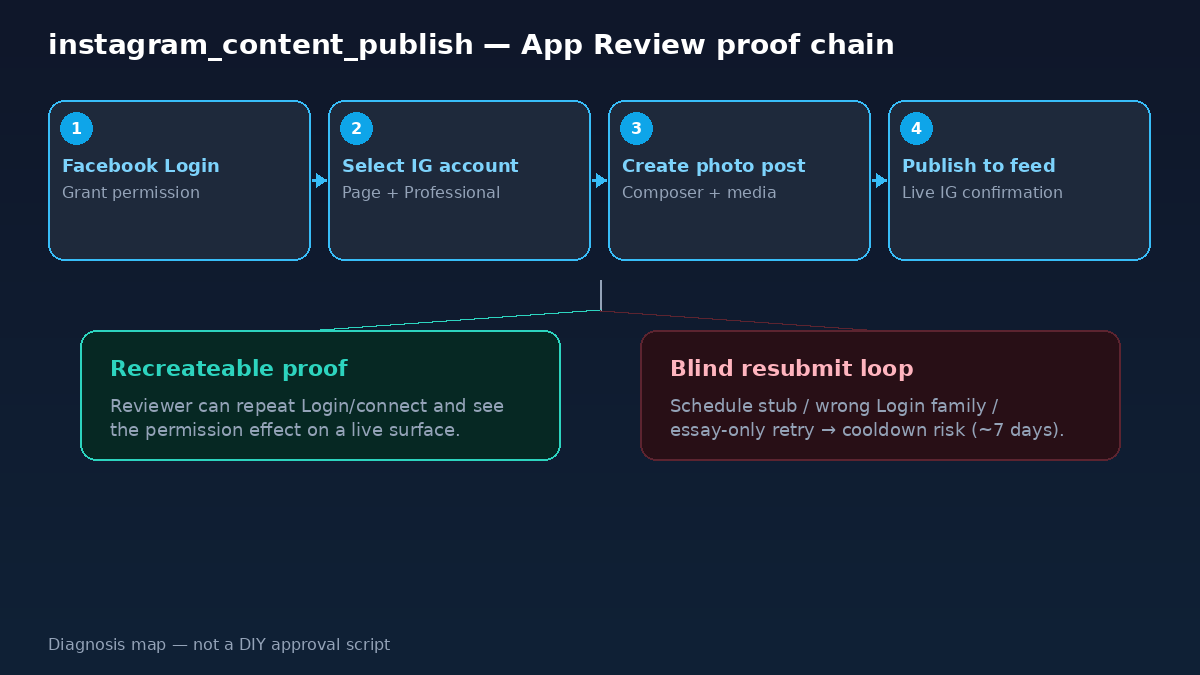
Complete Facebook Login grant → create a new photo post → publish to the business user’s Instagram feed in a recreateable product path.
Allowed usage + what Meta wants in App Review
Stay inside Meta’s allowed usage when you write notes: organic content creation for Instagram on behalf of a business (photos and videos to the main feed). Stretching the permission toward ads-only boosts, scraped competitor posting, or Instagram Login demos while requesting the Facebook Login scope is a policy or surface mismatch — not a “longer essay” problem.
Official screencast requirements from Meta’s table: demonstrate the complete Facebook Login process showing how the user grants this permission, then demonstrate creating a new photo post and publishing that post to the business user’s Instagram feed. Practitioners still map that bar to container create → status when needed → publish → live feed confirmation; Meta’s reviewer-facing bar remains Login + create/publish to the feed. Related Page permission patterns: Facebook Page API permissions App Review.
Why Meta rejects instagram_content_publish
- Schedule stub theater — UI queues a draft or shows “scheduled” without a live publish the reviewer can open on Instagram.
- Login / account connect incomplete — Facebook Login or Page → Instagram Professional linking never completes with the credentials you supplied (
pages_show_list/instagram_basicpath invisible). - Wrong permission family — product uses Instagram Login (
instagram_business_content_publish) while the submission arguesinstagram_content_publish, or the reverse. - Dependency unused —
pages_read_engagementorinstagram_basicrequested but never shown as part of selecting the publishing account. - Format mismatch — notes claim Reels, Stories, and carousels; video only shows a single image toast without feed proof.
Banner text may land as “unable to verify the permission(s) requested,” “inadequate demonstration,” or “unable to approve permission request.” Map the banner to missing Login → create → feed publish proof. See Unable to Verify Permissions and Inadequate Demonstration. An earlier rejection-series write-up on this permission lives at instagram_content_publish permission rejected.
What reviewers look for (psychology)
App Review is not a marketing deck for your social calendar. A stranger with limited time must grant the permission and see a real organic post appear on the Instagram feed claimed in your notes. Selecting an image is not publishing. A “Published!” toast without a feed surface is not publishing. A Loom of an engineer posting manually in the Instagram app does not substitute for your app performing publish under the granted permission.
Reviewers also punish surface confusion. Threads publish (threads_content_publish), Facebook Page posts (pages_manage_posts), and Instagram organic publish are different permission strings. If your notes blur them, reviewers assume the request is sloppy. Related Threads diagnosis: threads_content_publish App Review.
Related permissions: instagram_basic + pages_read_engagement + pages_show_list
Meta lists instagram_basic, pages_read_engagement, and pages_show_list as official dependencies of instagram_content_publish. instagram_basic covers Professional account profile/media basics; pages_show_list is how the app shows Pages the person manages; pages_read_engagement supports Page content/engagement context commonly required on the Facebook Login Instagram path.
In diagnosis terms, treat dependencies as part of the same publish story, not random add-ons. If the reviewer cannot list Pages, select the linked Instagram Professional account, or see basic account context, the publish button never becomes testable. Bundling a dependency you never demonstrate is a frequent silent killer: reviewers grant nothing when any linked permission path is unverifiable.
Common demo gaps (not a secret sauce checklist)
- Test credentials that never own a Page linked to an Instagram Professional account the reviewer can publish to.
- Media URLs or uploads that Meta’s fetchers cannot reach (private CDN, expired signed URLs).
- Video/Reels publish called while processing status is still in progress — silent fail during review.
- Screencasts that skip Login / Page / IG connect and jump to a pre-seeded composer.
- Notes that paste Instagram Business Login language into a Facebook Login
instagram_content_publishform.
These are diagnosis categories, not a pasteable approval recipe. Token models and composer UX differ — copying someone else’s screencast usually creates a new mismatch Meta will catch.
instagram_content_publish vs adjacent rejection labels
Developers often search only for banner text and miss that publish failures travel under several Meta labels. Inadequate demonstration usually means create/publish was not shown clearly. Unable to verify permissions usually means the reviewer never saw the permission’s effect on Instagram. Connect-related Instagram Business account failures can wrap the whole path before publish is even clickable. Keep the evidence map honest to Meta’s table for instagram_content_publish: Facebook Login grant, create a photo post, publish to the business user’s Instagram feed.
7-day cooldown risk: Blind resubmits — rewriting “we are a social scheduler,” swapping one screenshot, or substituting an Instagram Login clip while Facebook Login → feed publish remains missing — frequently fail again. Rapid retries can trigger automated App Review submission cooldowns that lock controls for up to about 7 days. That pause does not fix a broken publish path; it only delays the next honest attempt.
When a specialist audit helps
A specialist audit helps after one or two rejections when engineers insist Graph calls work but you still cannot see what a cold reviewer would miss. The value is mapping rejection language to evidence gaps — Login family, Page/IG link, dependency proof, create vs schedule stub, feed confirmation — then deciding whether to narrow scopes or rebuild the proof package.
It is not useful if you only want a guaranteed approval script or one-size recording template. Those rarely survive unique media pipelines and can increase cooldown risk.
Need Us to Get Your Meta App 100% Approved?
Stop losing weeks to repeated rejections. With 500+ apps approved, we handle your entire submission from start to finish. You get 100% Approval or a 100% Refund — and for your complete safety, you can hire us directly through Upwork or Fiverr Escrow (or use the WhatsApp / Calendar buttons in the header & footer).
Chat on WhatsAppFAQ
What is instagram_content_publish used for in App Review?
Per Meta, it creates organic feed photo and video posts on behalf of a business user so you can manage Instagram organic content (for example photos or videos to the main feed). Official dependencies: instagram_basic, pages_read_engagement, and pages_show_list.
What must the screencast show?
Complete Facebook Login grant for this permission, then create a new photo post and publish it to the business user’s Instagram feed in a path reviewers can recreate with your credentials.
Is this the same as instagram_business_content_publish?
No. instagram_business_content_publish is the Instagram Login / Business Login for Instagram family. Do not substitute that Login surface for an instagram_content_publish (Facebook Login) request.
Can blind instagram_content_publish resubmits cause a cooldown?
Yes. Essay-only or schedule-stub retries that leave Login → create → feed publish unrecreateable often fail again and can lock App Review for multiple days.
Amandeep Singh — Meta API / App Review Specialist
10+ years helping product and agency teams through Meta App Review, Advanced Access, and Business Verification. 500+ apps guided and 10,000+ permissions handled across Facebook, Instagram, WhatsApp, Ads, and Threads surfaces. Focus: policy-aligned diagnosis — not generic resubmit templates.
Free 15-Minute Meta Permission Audit
Share your instagram_content_publish rejection note, whether instagram_basic / pages_read_engagement / pages_show_list were bundled, and a still showing Facebook Login or a live Instagram feed post. We will separate Login-family mix-ups from publish proof gaps before your next submit.
Strategy second.
instagram_content_publish App Review checklist
Use this instagram_content_publish App Review checklist before resubmitting: prove the Facebook Login grant, show the linked Instagram Professional account, create a new photo, and confirm the live feed publish. This instagram_content_publish App Review evidence map is stronger than a schedule-only demo and helps explain an instagram_content_publish App Review rejection without a blind retry.
instagram_content_publish App Review checks should stay specific. An instagram_content_publish App Review diagnosis compares the Login grant and feed publish. If your instagram_content_publish App Review evidence is incomplete, fix the publish path before the next instagram_content_publish App Review submission. This instagram_content_publish App Review guide keeps the instagram_content_publish App Review scope aligned with Meta’s review surface.