Unable to verify permissions is the signal that Meta could not reproduce the requested capability with the submitted test path. This guide treats unable to verify permissions as a verification gap, not a reason to add more scopes.
Unable to Verify Permissions: 5 Expert Fixes
When Meta reports unable to verify permissions, compare the live Test User journey with every screencast frame. A careful unable to verify permissions review starts with consent, granted scopes, and the exact feature entry point.
To resolve unable to verify permissions, make the requested permission visible in login, grant it to the Test User, and demonstrate its use. The unable to verify permissions message usually means one proof link is missing.
The reliable response to unable to verify permissions is a cold-start test. Sign in as the reviewer, confirm the grant dialog, and record what happens when unable to verify permissions is reproduced.
Meta App Review RejectionIf unable to verify permissions appears after login, inspect app roles and asset roles separately. An unable to verify permissions diagnosis confirms Page, Business, Instagram, and other required assets.
Treat unable to verify permissions as an evidence mismatch: the requested scope, granted scope, and feature shown in the video must agree. This makes the unable to verify permissions fix testable instead of speculative.
For unable to verify permissions, update App Verification Details with working credentials and exact navigation steps. Document the unable to verify permissions path so a reviewer can repeat it without assumptions.
Before resubmission, test unable to verify permissions on a clean session and verify the same result for the Test User. The safest answer to unable to verify permissions is accurate proof, not a larger permission list.
Use this unable to verify permissions checklist: consent, scope grant, asset access, feature use, and matching screencast evidence. An unable to verify permissions review is complete only when every item is reproducible.
Unable to Verify Permission Requested While Testing App: Expert Diagnosis
When Meta App Review returns We are unable to verify the permission(s) requested while testing your app, reviewers followed your screencast as a guide and still could not recreate — for at least one requested permission or feature — the experience your submission claimed. This article explains how unable to verify permission requested while testing app maps to the exact Rejection Guide wording, how Test User permission mismatches and ungranted scopes produce it, how it relates to Unable to Verify Use Case Experience and Inadequate Demonstration, and why blind resubmission often triggers a cooldown instead of approval.
Unable to verify permission requested while testing app: what this rejection means
Meta’s App Review Rejection Guide states the rule plainly: submission reviewers use a submission’s screencast as a guide and attempt to recreate how the app uses each of the features and permissions the app is requesting. If a reviewer is unable to recreate the experience depicted in the screencast for any of the requested permissions or features, the app is rejected with “We are unable to verify the permission(s) requested while testing your app.”
That sentence is the official label for a live recreateability failure at the permission/feature layer. A polished video and policy-sounding use case still fail if the Test User path never grants scopes, never reaches the feature that consumes them, or lands in a product state different from the screencast.
WHAT failed
Reviewers could not recreate the depicted experience for one or more requested permissions or features while testing your live app.
WHY it matters
Without recreateable permission usage, Meta cannot confirm Advanced Access is needed or that Platform is used only as documented.
WHAT they expected
A finished path: Test User login, consent, granted scopes matching the request, and the feature working exactly as the screencast depicts.
Reviewer psychology: recreateability beats narrative
App Review is not a negotiation with a co-founder. Reviewers work from time-boxed checklists. They treat your screencast as a script and App Verification Details as the key. They will not invent missing Test User roles, approve scopes that never appear, or assume a dashboard “probably works” under Standard Access only.
If your recording shows pages_read_engagement powering insights but the Test User never receives that scope, verification fails. If notes describe Instagram messaging but the Test User lacks a connected Professional account with the expected assets, verification fails. Ambiguity is unverified — not “close enough.” Rewriting the use-case paragraph alone rarely clears this; the live permission experience must match under credentials a stranger can use.
Technical nuances: Test User mismatches and ungranted scopes
Across real Meta submissions, this Rejection Guide label often traces to Test User and scope-provisioning gaps even when engineering is solid:
- Test User never granted the requested scopes — login works, but OAuth never surfaces the scopes under review, or Standard Access masks the Advanced Access path.
- Role / asset mismatch — Test User is not admin on the Page, Ad Account, or Instagram Professional account required, so the UI shows empty states instead of the screencast’s happy path.
- App roles vs. product roles confused — tester on the app, but Business/Catalog/WhatsApp asset roles were never provisioned for that identity.
- Screencast vs. cold-start divergence — recording used a founder account with long-lived tokens; the Test User hits onboarding walls, feature flags, or Development Mode gates.
- Incomplete App Verification Details — missing Test User email/password, or steps that skip how to locate the grant dialog.
- Partial permission sets — one scope recreates; a sibling does not. Meta rejects when any requested permission/feature cannot be verified.
The Rejection Guide’s remediation is explicit: finish development; create a Test User and recreate the experience exactly as depicted; confirm instructions include that Test User’s email and password; if the screencast is inaccurate but live testing works, capture a new accurate screencast; then resubmit. Those steps sound mechanical — executing them against a unique token model and Business Manager graph is where teams lose cycles.
Policy grounding: trustworthy product, verified permissions
Under Meta Developer Policies section 1. Build a trustworthy product, developers must follow Developer Docs instructions, including allowed usage for Platform (commonly referenced as 1.6). App Review enforces that rule. A permission that cannot be verified is treated less like a temporary Test User typo and more like insufficient proof that the app needs — and correctly uses — Advanced Access.
A button hotfix is necessary but not sufficient. Repeated claims of an experience reviewers never reach create a pattern of weak proof. Policy-aligned work makes the Test User path true, scoped, and recreatable — not a credential rotation lottery.
Official references worth reading before any resubmit:
- Meta App Review Rejection Guide — “We are unable to verify the permission(s) requested while testing your app”
- Meta Developer Policies — Build a trustworthy product
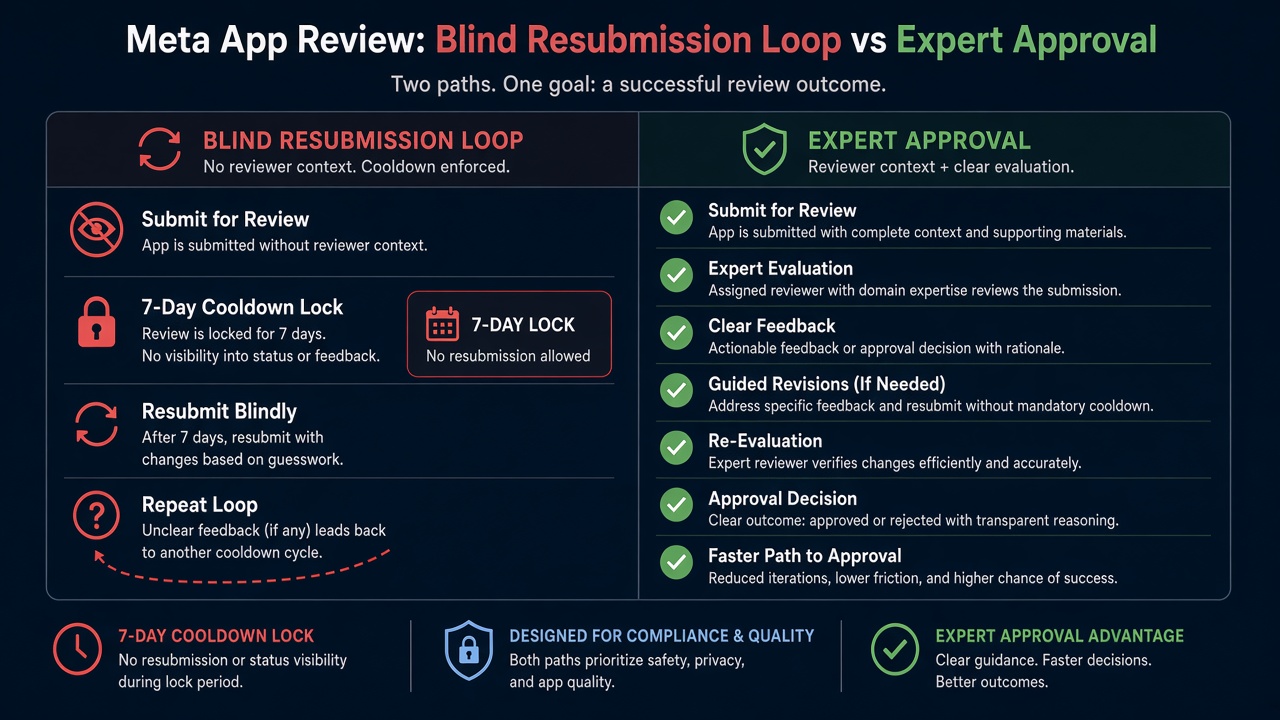
Blind resubmission risk: Practitioner experience across hundreds of apps shows that rapid retries — same Test User, same ungranted scopes, same incomplete instructions — frequently trigger automated submission cooldowns. Those locks can disable review buttons for up to 7 days. Meta updates thresholds over time, but the operational reality is consistent: blind resubmits erode trust signals and can delay launches by weeks while the recreateability gap remains untouched.
Expert Diagnosis framework (not a DIY paste template)
Every app’s Business assets, token model, and permission set are unique. A full copy-paste “Test User script” would either be wrong for your product or dangerously generic. Specialists run a structured diagnosis instead:
Map each requested permission to a cold-start Test User path
Line up every scope/feature against screencast frames and a clean-session walkthrough using only the credentials you plan to give reviewers.
Isolate mismatch classes
Separate ungranted scopes, missing Business/Page/IG roles, instruction gaps, and allowed-usage mismatches — each needs a different fix before resubmit.
Align live grant + usage to Developer Docs
Prove the permission is granted on camera and used in-product as documented — rewrite notes only after the live path is true.
Resubmit once with intact evidence
One coherent package (accurate screencast + working Test User + clear steps) beats three frantic retries. Cooldowns punish volume; reviewers reward clarity.
For a broader use-case gap, see Unable to Verify Use Case Experience. If the video never showed the grant, see Inadequate Demonstration. Managed path: Facebook App Review service and case studies.
Free 15-Minute Meta Rejection Audit
Share your rejection note, requested permissions, and how you provisioned the Test User. We will tell you whether this looks like an ungranted-scope problem, an asset-role mismatch, or both — before you burn another review cycle.
Strategy second.
What not to do after this rejection
- Do not resubmit the same Test User and screencast hoping for a different reviewer.
- Do not add more permissions to “look complete” when the existing ones still cannot be recreated.
- Do not confuse app tester roles with Page/Business/Instagram asset roles — reviewers need both layers working.
- Do not treat a polished video of a founder account as proof that a provisioned Test User path exists.
Finish the permission path. Make it recreatable with the credentials you submit. Align it to allowed usage. Then submit once. Anything else is gambling with cooldown risk.
Need Us to Get Your Meta App 100% Approved?
Stop losing weeks to repeated rejections. With 500+ apps approved, we handle your entire submission from start to finish. You get 100% Approval or a 100% Refund — and for your complete safety, you can hire us directly through Upwork or Fiverr Escrow (or use the WhatsApp / Calendar buttons in the header & footer).
Chat on WhatsAppFAQ
Is this the same as “Unable to Verify Use Case Experience in App”?
Same failure family, different emphasis. Meta’s Rejection Guide uses the permission-verification wording when reviewers cannot recreate a requested permission/feature experience from the screencast. Dashboard copy sometimes emphasizes the broader use-case experience. Both fail when live recreateability breaks.
Can a working login still fail permission verification?
Yes. Logging in is necessary but not sufficient. Reviewers must also recreate how the app uses each requested permission or feature. Ungranted scopes, empty assets, or a path that never reaches the feature still fail this rejection.
Will fixing only the screencast clear this rejection?
Only if the live Test User path already matches. Meta’s guide says: if the screencast is inaccurate but you can successfully test each permission with the Test User, capture a new accurate screencast, fix instructions and credentials, then resubmit. If live testing still fails, re-recording alone will not help.
Can repeated retries lock App Review for up to 7 days?
Yes. Rapid resubmissions without resolving Test User / scope recreateability gaps frequently trigger automated cooldowns that can disable review submission controls for up to 7 days. Thresholds change; the delay cost is real.
Amandeep Singh — Meta API Expert
10+ years helping product teams through Meta App Review, Business Verification, and Advanced Access. 500+ apps guided; 10,000+ permissions handled across Facebook, Instagram, WhatsApp, and Marketing API surfaces. Focus: policy-aligned proof, not hype.
Still stuck on unable to verify permission requested while testing app? Get a focused read on your Test User and scope path before the next submit.
Book Free 15-Minute Meta Rejection Audit on WhatsAppDiagnostic takeaway
If the review team says unable to verify permission requested while testing app, start with a recreateability audit rather than a blind resubmission.
The unable to verify permission requested while testing app result usually means the Test User, granted scopes, or review path does not match the submitted evidence.
For an unable to verify permission requested while testing app rejection, compare the exact permissions requested with the permissions granted to the Test User.
Documenting the unable to verify permission requested while testing app failure makes the next review attempt easier to reproduce and defend.
When unable to verify permission requested while testing app persists, an expert audit can isolate the mismatch before cooldown risk increases.