Connect Instagram Business Account review checklist: test the Connect Instagram Business Account button in a clean browser; verify the Connect Instagram Business Account redirect; confirm the Connect Instagram Business Account asset picker; document the Connect Instagram Business Account permission result; and show the Connect Instagram Business Account path in the screencast. A reliable Connect Instagram Business Account flow is the evidence Meta needs, while a broken Connect Instagram Business Account path can fail every requested Instagram scope.
We Were Unable to Test the Steps to Connect an Instagram Business Account: Expert Diagnosis
When Meta App Review returns We Were Unable to Test the Steps to Connect an Instagram Business Account, the reviewer is not nitpicking your brand colors. They signed into your product (or tried to) and could not complete the path that authorizes access to an Instagram Professional account the way your submission described. This article grounds that rejection in Meta’s App Review Rejection Guide Instagram Business Account section, explains why unfinished OAuth / Page–IG linking kills every Instagram permission in the same batch, and why blind resubmits after a “we fixed the notes” edit invite cooldowns.
Connect Instagram Business Account: what this rejection actually means
Meta’s Rejection Guide states:
A submission reviewer will attempt to sign into a submitted app and verify that it accesses data in an Instagram Professional account in the manner described in the submission. If a reviewer is unable to sign into the app, or is unable to use the app to access data in an Instagram Professional account as described in the submission, the submission will be rejected with “We Were Unable to Test the Steps to Connect an Instagram Business Account”.
The guide’s remediation path is concrete: finish development; ensure the screencast shows signing into the app and authorizing Instagram Professional data access via the Facebook Login button; if users must sign in with a non-Facebook account first, include those non-Facebook test credentials in App Verification Details; upload a recaptured screencast if needed; then resubmit.
Neighboring recreateability failures often co-travel — Unable to Verify Permissions, Inadequate Demonstration, test credentials that do not work, and Unable to locate Facebook Login Button — because Instagram Graph scopes never get exercised if the connect step never completes.
WHAT failed
Reviewers could not sign in and/or could not complete connect → authorize → access Instagram Professional data as your notes and screencast claimed.
WHY it matters
Instagram permissions are useless without a working Professional-account connection. If that gate fails, every IG scope in the package fails with it.
WHAT they expected
A recreateable path: app login → Facebook Login consent → select/connect Instagram Professional account → use the requested feature and show the result.
Connect Instagram Business Account: reviewer psychology
For Instagram App Review, “connect an Instagram Business account” is not a footnote — it is the proof that your SaaS can become a legitimate data consumer of a creator or brand’s Professional profile. Reviewers follow your screencast like a script. If the video jumps from a dashboard to “insights loaded” without showing Facebook Login authorization, Page selection, or IG Professional linking, they will try to invent the missing clicks — and reject when the live app stalls on OAuth errors, empty asset pickers, or “no Instagram account connected.”
That psychology is why unfinished white-label social tools and “API-only” backends get this rejection so often. A Postman collection is not a connection flow. A token you minted as an admin is not what a stranger reviewer can recreate. If your notes say “user connects Instagram” while the UI only accepts a pasted long-lived token, you have described a different product than the one under test — adjacent to final UX mismatch.
Technical nuances that trip capable teams
Across hundreds of Instagram / Meta apps, this rejection clusters around:
- Screencast skips Facebook Login + consent — jumps straight to a pre-connected workspace; Rejection Guide explicitly wants sign-in and authorization via the Facebook Login button.
- Missing non-Facebook test credentials — app requires email/password before Login, but App Verification Details omit them (same class of failure as broken credentials).
- Page not linked to Instagram Professional — Facebook Login succeeds, yet no IG Business/Creator asset appears in the picker.
- Wrong Login product / missing scopes in dialog — Login for Business config omits Instagram scopes or
pages_show_list/ related Page permissions needed to surface the asset. - Redirect URI / Valid OAuth Redirect mismatches — reviewer hits a blank or error page mid-connect.
- Roles-only Standard Access demo — works for your admin, breaks for a reviewer using Meta’s own test Facebook accounts on apps-for-other-businesses flows.
- Incomplete development — connect button is a stub; feature still under construction when Live Mode readiness is claimed.
Official references:
- Meta App Review Rejection Guide — “We Were Unable to Test the Steps to Connect an Instagram Business Account”
- App Review for Instagram API
- Instagram Platform documentation — Professional account connection requirements
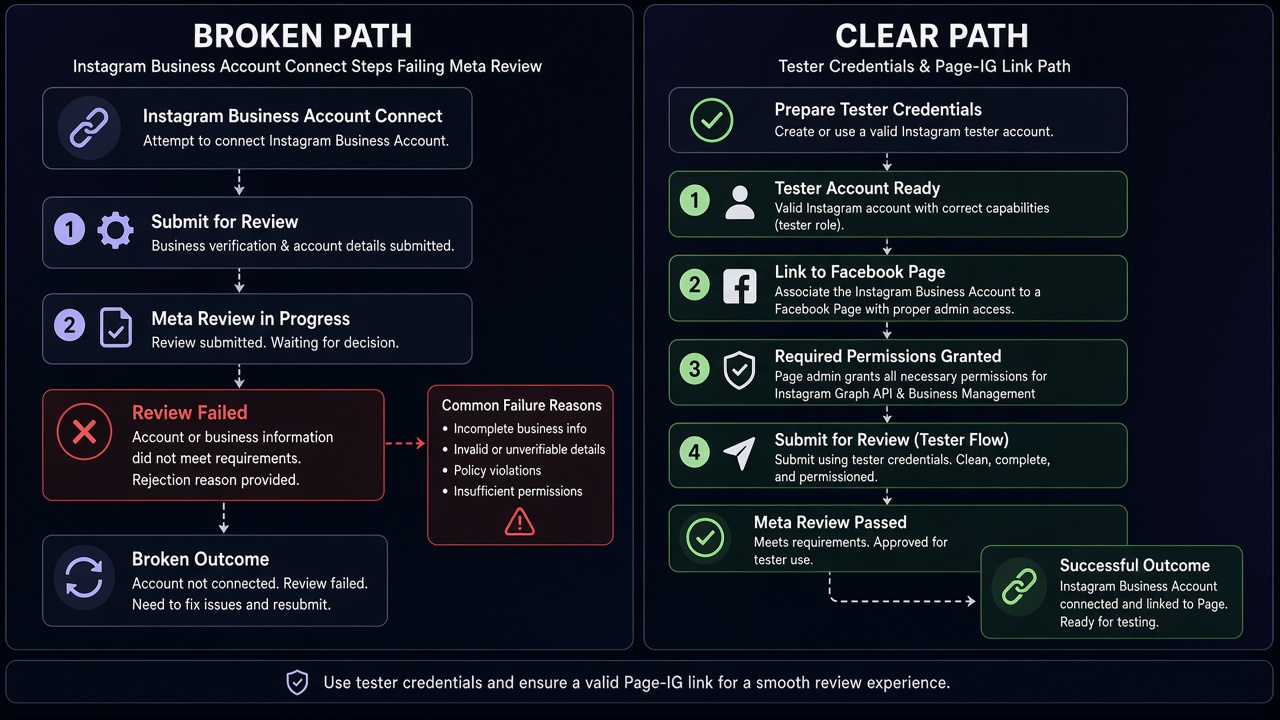
Blind resubmission risk: Practitioner experience across hundreds of apps shows teams often resubmit after only rewriting App Verification Details (“click Connect Instagram”) while the screencast still omits Facebook Login authorization, or the live OAuth path still fails. Those retries fail again and frequently contribute to automated submission cooldowns that can lock App Review buttons for up to 7 days. Fix the recreateable connect path once; do not burn cycles on essay-only edits.
Expert Diagnosis framework (not a DIY paste template)
Every white-label publisher, inbox, and analytics SaaS has a different login shell and asset model. There is no safe universal “approved Instagram connect script.” Specialists diagnose first:
Reproduce as a stranger
From a clean browser, using only the credentials and URL you gave Meta, complete connect end-to-end. If you cannot, reviewers will not either.
Align screencast to Rejection Guide steps
Show app sign-in, Facebook Login authorization for Instagram Professional data, asset selection, then the permission’s result — not a pre-warmed admin session.
Fix asset and OAuth prerequisites
Page↔IG Professional linkage, redirect URIs, Login configuration, and any non-Facebook credentials must be ready before the next submit.
Resubmit once with one coherent package
One working connect path beats three note rewrites that invite 7-day cooldowns.
Managed help: Instagram App Review service, Facebook App Review service. Patterns: case studies. Related: Unable to Verify Use Case, Unable to Approve Permission Request, incentivizing unapproved actions, rejection reasons hub.
Free 15-Minute Meta Rejection Audit
Share your rejection note, the connect portion of your screencast, and whether reviewers must use non-Facebook credentials before Facebook Login. We will map the break to the Rejection Guide Instagram Business Account section before you burn another review cycle.
Strategy second.
What not to do after this rejection
- Do not resubmit a screencast that starts already connected to Instagram.
- Do not paste personal Instagram passwords into App Verification Details; use proper non-Facebook app test accounts when required, and let reviewers use their own Facebook accounts where Meta instructs.
- Do not treat a working admin token as proof of a user-facing connect flow.
- Do not stack more Instagram permissions on a broken connect path hoping one will pass.
Make the connect path recreateable. Match the Rejection Guide. Then submit once.
Need Us to Get Your Meta App 100% Approved?
Stop losing weeks to repeated rejections. With 500+ apps approved, we handle your entire submission from start to finish. You get 100% Approval or a 100% Refund — and for your complete safety, you can hire us directly through Upwork or Fiverr Escrow (or use the WhatsApp / Calendar buttons in the header & footer).
Chat on WhatsAppFAQ
What does “unable to test steps to connect Instagram Business account” mean?
Per Meta’s Rejection Guide, reviewers could not sign into your app and/or could not use it to access Instagram Professional account data the way your submission described — so the connect flow failed under test.
Does the screencast have to show Facebook Login?
Yes for this rejection’s remediation path. The Rejection Guide tells you to verify the screencast shows signing into the app and authorizing Instagram Professional data access via the Facebook Login button, and to recapture if it does not.
What if users log in with email before Facebook Login?
Include non-Facebook test user credentials in App Verification Details so reviewers can reach the Facebook Login step. Missing those credentials is a common reason the connect path never starts.
Do blind resubmits risk a 7-day App Review cooldown?
Yes. Essay-only or screencast-skipping retries often fail again, and rapid resubmits can lock App Review submission controls for up to 7 days.
Amandeep Singh — Meta API Expert
10+ years helping product teams through Meta App Review, Business Verification, and Advanced Access. 500+ apps guided; 10,000+ permissions handled across Facebook, Instagram, WhatsApp, and Marketing API surfaces. Focus: policy-aligned proof, not hype.
Still stuck on unable to test steps to connect an Instagram Business account? Get a focused read on your rejection before the next submit.
Book Free 15-Minute Meta Rejection Audit on WhatsAppRebuild the Connect Instagram Business Account test path
The safest remediation starts with the exact journey a Meta reviewer must complete. Treat the connect Instagram business account flow as a controlled test, not as a marketing demo. Begin from a clean browser profile, open the submitted app URL, and record what appears before any permission is requested. The first screen should explain the product, identify the sign-in action, and make the next step obvious. If a reviewer has to guess where to start, the submission is already harder to test.
Use the same account type and app configuration that you described in App Review. A Facebook Login button that is hidden behind an unrelated email form, a redirect that changes domains without explanation, or an asset picker that loads only after a second attempt can turn a working developer flow into an unable to test result. Capture each transition, including loading states and permission prompts, so your screencast proves what the reviewer will see.
What to verify before recording
- Use a fresh browser session and confirm the submitted URL loads without a console error or blocked popup.
- Confirm the Facebook Login button is visible at the first relevant sign-in step.
- Verify the Instagram Professional account is connected to the expected Business portfolio.
- Check that the asset picker shows the test asset and that the requested permission result is visible.
Make reviewer access deterministic
Reviewers should not need private knowledge of your internal setup. Put the test user credentials, workspace instructions, and account prerequisites in App Verification Details. Explain whether the reviewer must first select a Business portfolio, choose an Instagram Professional account, or approve a Facebook Login dialog. If a test user has more than one asset, state which asset is safe to select. Remove expired users, rotate passwords before submission, and make sure the account is not blocked by a pending checkpoint or two-factor prompt that the reviewer cannot complete.
Validate the redirect on both desktop and a narrow viewport. Many connect Instagram business account failures are caused by a responsive button that falls below a clipped container or by a callback page that is readable only on the developer workstation. Check the browser address bar after authorization and compare the returned state, code, and error handling with the documented callback.
A friendly error is better than a blank screen, but the strongest evidence is a successful return to the product followed by a visible connected-account state. Keep the screencast short enough to follow and complete enough to reproduce. Start with the app URL, show the login action, show the authorization dialog, choose the intended asset, and demonstrate the first meaningful product result. Do not cut away from the permission moment. Do not replace the real flow with slides. If a step requires waiting, show the wait and explain the expected result. The video, credentials, and written instructions should tell the same story.
Evidence that closes common gaps
- Show the initial product screen and the exact location of the connect control.
- Show Facebook Login and the permissions requested for the Instagram surface.
- Show the asset selection and the account identity after the redirect returns.
- Show one product action that proves the requested access is usable.
- Explain any cooldown, review mode, or test-user limitation before submission.
Before you resubmit the rejection
Run the complete journey as if you were a reviewer who has never seen the code. Sign out of the product, clear the session, and repeat the path using only the instructions supplied in the review form. Test with the same role, region, and account type that the submission promises. If the path works only after a developer has manually granted an entitlement, document that dependency and remove it from the reviewer journey. A connect Instagram business account button that works for one administrator but not for the supplied test user is not ready.
Inspect every boundary between your app and Meta. Confirm the OAuth redirect URI is an exact match, the app mode is appropriate for the review, and the requested permissions are enabled for the product. Confirm your privacy policy and data deletion links are reachable, and make sure the screen does not request a permission that the screencast never explains. When permissions are declined, the app should recover without trapping the reviewer in an endless redirect.
After a successful run, compare the evidence against the Rejection Guide line by line. The guide, screencast, credentials, and written description should identify the same Instagram Professional account and the same product capability. Save a timestamped copy of the successful recording and note the browser, account role, and selected asset. This record helps diagnose a later cooldown without repeatedly submitting guesses.
A practical final checklist
- Fresh session reaches the product without a stale authorization token.
- Test-user credentials are current and the reviewer can complete every prompt.
- The connect Instagram business account flow has one clear start point and one clear success state.
- The screencast includes the permission dialog, asset picker, callback, and first product result.
- The final submission uses the exact requested scope names and does not overclaim access.
When all five checks pass, wait for the appropriate review window instead of making rapid changes. A calm, reproducible submission is easier for Meta to approve and easier for your team to support. If the test still fails, stop the resubmit cycle, preserve the error state, and have an experienced reviewer compare the supplied evidence with the live path.
Operational checks after a successful connection
A working authorization dialog is only one checkpoint. After the connect Instagram business account flow returns to your product, verify that the connected identity is the account the reviewer selected and that the first API request completes with the expected object. Show a useful empty state when there is no data rather than a spinner that never ends. This makes the reviewer journey understandable even when the test account has limited activity.
Check session expiry and recovery before you submit. Disconnect the test account, reconnect it, and repeat the first product action. Then revoke access from the account settings and confirm the app explains how to reconnect. These checks catch stale tokens, missing state validation, and callback code that succeeds only once. They also help your support team answer a reviewer who reports that the button worked but the connected account did not appear.
Keep the submitted proof aligned with the live build. If the screencast was recorded on a staging URL, the review credentials must reach that same environment. If a feature flag changes the Instagram Business Account screen, record again after the flag is enabled. Avoid last-minute permission changes while a review is open; they can make a previously clear path appear inconsistent.
Finally, write the remediation in the order a reviewer will execute it: open the URL, sign in, choose the asset, approve the requested scopes, return to the product, and confirm the result. A concise sequence reduces guesswork and gives the Rejection Guide a direct answer. When every step is reproducible, the next submission is based on evidence rather than hope.