Meta App Rejected: Unable to Approve Permission Request — Expert Diagnosis
When Meta App Review returns Unable to Approve Permission Request (often shown as a generic denial such as “App rejected — Unable to approve permission request”), teams frequently panic because the label feels final and non-specific. In practice, this is usually a wrapper outcome: during review, Meta could not approve one or more submitted permissions or features for use — commonly because the experience could not be verified end-to-end, even when the conceptual use case looks valid. This article explains how to read that generic denial, how it maps to Rejection Guide recreateability steps and neighboring policy rejections, and why immediate blind resubmits risk 7-day cooldowns.
When an unable to approve permission decision appears, treat the unable to approve permission message as a testing signal rather than a verdict on the product.
The unable to approve permission outcome should trigger a fresh evidence review, and an unable to approve permission request deserves a complete cold-start check before resubmission.
In other words, an unable to approve permission notice is a prompt to document proof, not a reason to resubmit an unable to approve permission package unchanged.
What this rejection actually means
Dashboard and community threads consistently show a remediation block that tracks Meta’s Rejection Guide family for unverifiable permissions:
- Make sure you have completed all development of your app.
- Create a Test User and verify you can recreate the experience exactly as depicted in your screencast.
- Confirm App Verification Details instructions are correct and include the Test User’s email and password.
- If the screencast is inaccurate, capture a new accurate one, then resubmit.
Reviewer notes often add the blunt truth: “use case is already valid” — but instructions, test credentials, or a homepage-only URL blocked testing of the permission’s actual usage. So the generic denial is less “your product category is banned” and more “we could not approve what we could not fully test,” unless a specific policy citation (for example Platform Policy 8.9, Disallowed Use Case Details, or Developer Policy 1.7) appears alongside it.
WHAT failed
Meta could not approve one or more requested permissions/features — frequently because usage was not recreateable with the provided proof package.
WHY it matters
Unapproved permissions stay limited to role users. Shipping to customers without Advanced Access leaves production broken even if your Demo Mode looked fine.
WHAT they expected
A finished path: reachable login URL, working credentials, accurate screencast, and on-screen use of each permission that improves a clear user workflow.
Reviewer psychology: generic label, specific checklist
App Review does not owe you a novel-length rejection essay. When time is short, the generic “unable to approve permission request” banner appears, and the actionable detail lives in Notes from your reviewer. Treat those notes as the primary diagnosis: missing credentials, homepage URL without login, screencast that skips consent, or a feature that never shows permission-backed data.
That psychology is why this denial co-travels with named failures you may already know: Unable to Verify Use Case, Unable to Verify Permissions, Test Credentials Do Not Work, and Inadequate Demonstration. The wrapper says “not approved”; the notes (and your own cold-start test) reveal which failure family actually blocked approval.
Technical nuances that trip capable teams
Across hundreds of Meta apps, generic permission denials cluster around:
- Homepage-only URLs — App Verification Details point to marketing pages with no login path for reviewers.
- Missing or stale Test Users — credentials omitted, expired, or never verified outside the office network.
- Screencast / live divergence — video shows ads or inbox data; the provisioned test account cannot reach those assets.
- Permission used only in API clients — Postman collections are not a substitute for in-app demonstration.
- Stacked scopes with thin UI — one video tries to cover too many permissions; none get a clear value moment (8.9 risk).
- Policy mixed into the wrapper — branding (1.7), disallowed purpose, or minimum-permissions issues quietly included under the same banner.
Another frequent pattern: the permission works for an Admin role on the app but fails for the Test User you listed — because Page roles, Ad Account assignments, or Instagram Professional linkages were never granted to that test identity. Reviewers will not invent Business Manager access for you. If your notes say “open Insights,” the provisioned account must already see Insights. Generic denials often hide this asset-provisioning gap underneath the same Unable to Approve Permission Request banner, which is why a stranger cold-start with only the written credentials is non-negotiable before resubmit.
Official references:
- Meta App Review Rejection Guide — verification and related rejection families
- App Review process — if Meta cannot test a permission’s functionality, that permission is not approved
- Meta Developer Policies
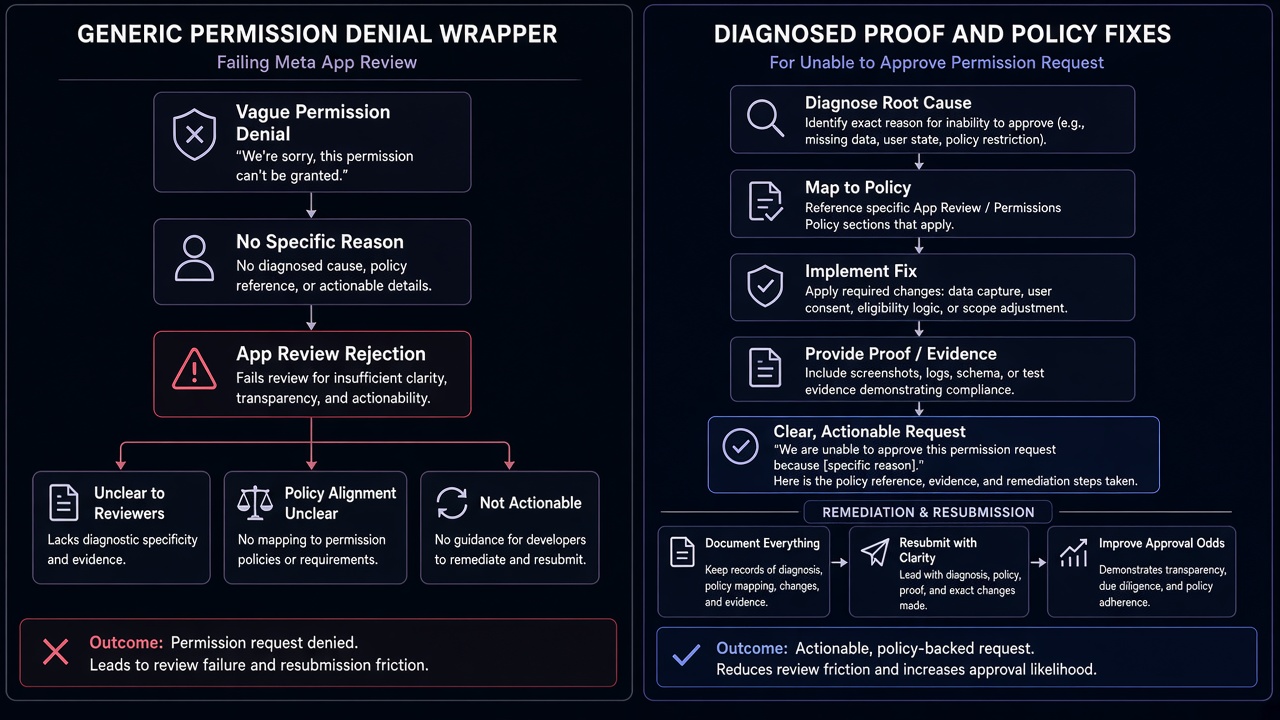
Blind resubmission risk: Practitioner experience across hundreds of apps shows that “Unable to Approve Permission Request” is the rejection most likely to trigger panic resubmits — same screencast, same homepage URL, same credential gaps — sometimes within hours. Rapid retries without fixing underlying verification or policy issues frequently trigger automated submission cooldowns that can lock review buttons for up to 7 days. Read the notes, run a stranger test, then submit once.
Expert Diagnosis framework (not a DIY paste template)
Generic denials tempt generic DIY templates. Unique apps — multi-tenant SaaS, Tech Providers, Ads + Leads stacks — do not share one pasteable script. Specialists diagnose first:
Parse the wrapper vs. the notes
Extract every concrete blocker in reviewer notes (URL, credentials, missing step, policy cite). The banner alone is not the diagnosis.
Cold-start the permission with reviewer-grade access
From a clean session, follow only your written instructions. If you cannot show the permission’s user-visible effect, neither can Meta.
Split proof fixes from policy fixes
Credentials and screencast gaps need verification work. 8.9 / disallowed-purpose / 1.7 need product or branding changes — different workstreams.
Resubmit a coherent minimum package
Approve-ready permissions only, accurate video, working login URL, and intact Test User details — once. Volume invites cooldowns.
Managed help: Facebook App Review service. Real outcomes: case studies. Also compare Login-path failures: Login button broken, embedded webview.
Free 15-Minute Meta Rejection Audit
Share the full rejection email/screenshot (banner + reviewer notes) and your permission list. We will classify proof gaps versus policy blockers before you spend another review cycle.
Strategy second.
What not to do after this rejection
- Do not resubmit within hours with the same homepage URL and the same screencast.
- Do not ignore reviewer notes because the banner looks generic.
- Do not add more permissions to “improve odds” after a generic denial.
- Do not treat “use case valid” language as approval — it often means proof failed, not that you are done.
If multiple permissions failed under one generic banner, resist the urge to rewrite everything at once. Prioritize the permissions you need for launch, remove the rest temporarily, and rebuild proof for the minimum set. A smaller successful approval often unblocks the business faster than a maximalist package that keeps earning the same wrapper denial.
Diagnose the real blocker. Fix proof and policy honestly. Then submit once with intact evidence.
Need Us to Get Your Meta App 100% Approved?
Stop losing weeks to repeated rejections. With 500+ apps approved, we handle your entire submission from start to finish. You get 100% Approval or a 100% Refund — and for your complete safety, you can hire us directly through Upwork or Fiverr Escrow (or use the WhatsApp / Calendar buttons in the header & footer).
Chat on WhatsAppFAQ
Is “Unable to Approve Permission Request” a single policy violation?
Usually it is a generic denial wrapper. Community and dashboard notes often pair it with guidance that mirrors the Rejection Guide’s recreateability steps (finish development, Test User, accurate screencast, correct App Verification Details). Always read the reviewer notes and any specific policy line cited underneath.
If the use case is “already valid,” why was the permission still denied?
Because validity of the idea is not the same as verifiability of the build. Reviewers commonly say the use case looks fine but instructions, credentials, or login URLs were insufficient to test the permission’s usage.
Should I resubmit every permission in the same package immediately?
Not blindly. Isolate which permissions failed for proof gaps versus policy (8.9, disallowed use case, 1.7). Fix proof and minimum scope first; rapid full-package retries raise cooldown risk.
When is a specialist audit safer than another DIY cycle?
When reviewer notes are thin, multiple failure families appear at once, or you have already burned retries. Unique apps do not share one pasteable fix script.
For reviewers, an unable to approve permission result is a proof gap to diagnose: document how the unable to approve permission request is tested, fix the unable to approve permission workflow, and resubmit only when the unable to approve permission evidence is complete This final unable to approve permission check completes the evidence.. An unable to approve permission review should be paired with an unable to approve permission checklist.
Amandeep Singh — Meta API Expert
10+ years helping product teams through Meta App Review, Business Verification, and Advanced Access. 500+ apps guided; 10,000+ permissions handled across Facebook, Instagram, WhatsApp, and Marketing API surfaces. Focus: policy-aligned proof, not hype.
Still stuck on Unable to Approve Permission Request? Get a focused read on your rejection before the next submit.
Book Free 15-Minute Meta Rejection Audit on WhatsAppThese verification steps keep the review record clear, reproducible, and aligned with the exact permission behavior under review.